
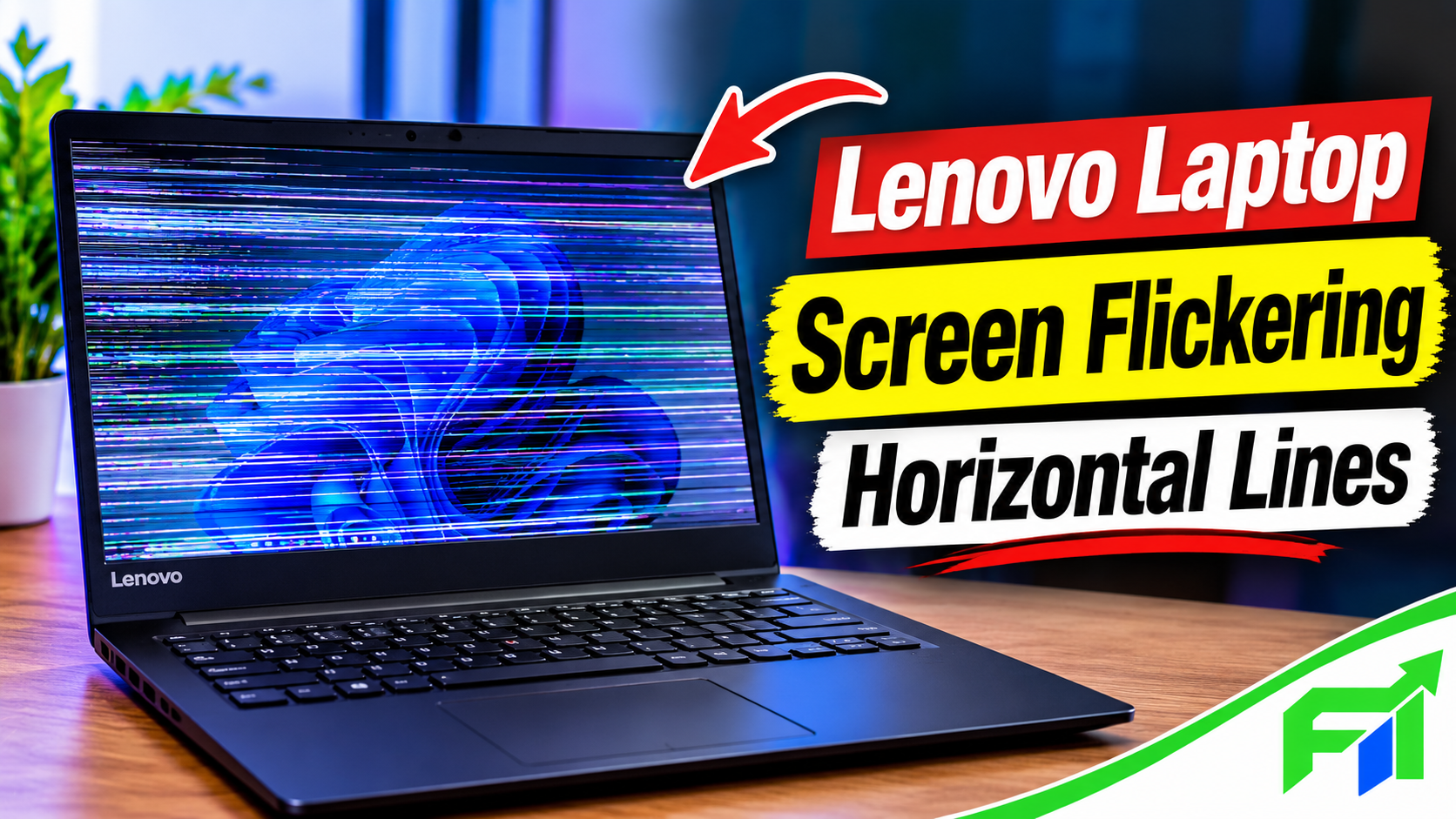
Why Lenovo Laptop Screen Flickering Horizontal Lines Appear and How to Fix Them
A laptop screen should display text, images, and videos without interruptions. However, some Lenovo users experience horizontal lines that appear across the display, flash for a few seconds, or remain visible while they work. These problems can make reading difficult and interrupt everyday tasks such as browsing, studying, watching videos, and editing documents. The issue may appear suddenly after starting Windows, opening an application, changing display settings, or moving the laptop.
Lenovo Laptop Screen Flickering Horizontal Lines can develop for several reasons, so identifying the actual cause matters before spending money on repairs. A graphics driver problem may require a software adjustment, while a damaged display panel or internal connection may need professional attention. This article explains the possible causes, useful diagnostic checks, and practical solutions. It also shows how to recognize situations where software troubleshooting is unlikely to solve the problem.
1. What Does Lenovo Laptop Screen Flickering Horizontal Lines Mean?
This problem describes a display condition in which one or more horizontal marks appear across the laptop screen, sometimes accompanied by flashing, shaking, distorted colors, or temporary black areas. The lines may stay in one position, move vertically, or appear only when the laptop displays certain images. Some users notice them immediately after pressing the power button, while others experience the problem after Windows loads. The appearance can differ between devices because Lenovo sells laptops with different screen technologies, graphics hardware, and display configurations. A single thin line does not necessarily indicate the same fault as several moving bands across the screen. Understanding when the marks appear, how long they remain, and whether they change with screen movement provides useful clues before attempting a repair.
2. Why Do Horizontal Lines Appear on a Lenovo Laptop?
Several components work together to produce the picture on a laptop screen. Windows sends visual information through the graphics driver, the graphics processor handles display output, and internal connections transfer the signal to the panel. A problem at any stage can affect the image. Outdated or incompatible graphics drivers may produce flickering, while a recently installed application can interfere with display behavior. Physical causes include a damaged LCD panel, a loose display cable, pressure on the screen, or an internal connection problem. Overheating and unstable power conditions may also contribute to display interruptions in some situations. The timing of the problem helps narrow down these possibilities. For example, an issue that begins after a driver update deserves a different first check from one that appears after a laptop has been dropped.
3. How to Identify Whether the Problem Comes From Windows or Hardware
Before changing settings or opening the laptop, perform a few simple checks. Restart the device and observe whether the lines appear before Windows finishes loading. If the marks are visible on the Lenovo startup logo or inside the BIOS/UEFI screen, a Windows application is less likely to be responsible, although this alone does not identify the exact faulty component. You can also open Task Manager by pressing Ctrl + Shift + Esc. Watch whether its window flickers along with the rest of the display. Microsoft explains that when Task Manager flickers too, a display driver is a likely cause; when it remains stable while other screen content flickers, an incompatible application may be responsible. These checks do not replace a hardware inspection, but they help you choose the next troubleshooting step.
4. Restart the Laptop and Reset the Graphics Driver
A temporary graphics problem can sometimes interrupt the image without indicating permanent damage. Start by saving your work and restarting the laptop normally. If the display still flickers after Windows returns, press Windows + Ctrl + Shift + B. This keyboard shortcut asks Windows to reset the graphics driver. You may hear a short sound or notice a brief screen flash when the command works. Give the display a moment to recover before deciding whether the problem remains. This method is useful for temporary graphics interruptions, but it cannot repair a damaged screen, broken cable, or faulty internal component. If the same lines return repeatedly, continue with driver and hardware checks instead of relying on the shortcut every time.
5. Update or Roll Back the Display Driver
A display driver allows Windows to communicate with the graphics hardware. An outdated, corrupted, or incompatible version can create flickering and unusual visual effects. To check it, open Device Manager, expand Display adapters, and right-click the listed graphics device. Select Update driver and follow the available instructions. For Lenovo laptops, it is also sensible to check the official Lenovo support resources for drivers designed for the exact model and Windows version. Avoid installing random driver packages from unfamiliar websites. If the issue started immediately after a driver update, open the adapter’s Properties, select the Driver tab, and check whether Roll Back Driver is available. This option returns to an earlier version when Windows has one available. Restart the laptop after making a change and observe whether the display improves.
6. Check Recent Windows Updates and Problematic Applications
Sometimes the display behaves normally until a particular application opens. This may happen with video editors, browsers, games, screen-recording tools, or programs that use graphics acceleration. Close the application and test the laptop with ordinary desktop tasks. If the lines disappear, check whether that program has an available update. You can also review recently installed applications and Windows updates to see whether the timing matches the first appearance of the problem. If an update appears to have triggered the issue, investigate the relevant driver or application before removing anything important. Uninstall a suspected application only when you have saved its data and understand the consequences. Microsoft recommends using Task Manager’s behavior as an initial clue when distinguishing application-related flickering from a display-driver problem.
7. Adjust Screen Resolution and Refresh Rate Settings
Incorrect or unsupported display settings can sometimes create visual problems, especially after connecting an external display or changing graphics options. Open Settings, select System, and then choose Display. Check that the screen uses its recommended resolution. Next, open Advanced display and review the available refresh-rate options. Select a rate supported by your particular Lenovo display rather than choosing an arbitrary value. The available options depend on the laptop model and screen specifications. If you recently changed resolution, scaling, or refresh rate, returning to the recommended settings provides a useful test. These adjustments may help when software configuration causes the issue, but they will not fix physical damage to the LCD panel or an internal display connection.
8. Connect an External Monitor to Test the Display
An external monitor can help determine whether the problem affects the laptop’s internal screen or the graphics output more broadly. Connect a compatible monitor or television using HDMI, USB-C, or another supported video connection. Select the correct input on the external display and check the picture while using Windows. If the external screen looks normal but the built-in laptop display continues to show horizontal lines, the internal panel or its connecting cable becomes a stronger possibility. If both screens show similar distortions, investigate the graphics driver, graphics hardware, or system software. This test is not conclusive because different ports, display modes, and graphics configurations can affect the result. Still, it gives a technician useful information and can help you decide whether the internal screen needs inspection.
9. Signs of a Damaged Screen or Loose Display Cable
Physical symptoms deserve particular attention. A laptop that has experienced a fall, pressure inside a bag, liquid exposure, or a hard impact may develop screen damage. A damaged LCD panel can show permanent horizontal lines, colored bands, dark patches, or areas that no longer display images correctly. A loose or damaged display cable may cause intermittent flickering, especially when the screen angle changes. If the picture changes whenever you gently adjust the lid, stop testing it repeatedly and arrange an inspection. Do not press the panel, twist the display, or attempt to force the cable into position. Laptop display assemblies contain delicate parts, and opening them without suitable tools can create additional damage. A technician can inspect the panel and connection to determine which component needs attention.
10. When Should You Take Your Lenovo Laptop for Repair?
Professional repair becomes the sensible choice when the lines remain visible during startup, appear in the BIOS screen, or continue after reasonable software troubleshooting. You should also seek assistance if the display has visible cracks, black patches, liquid damage, or signs of physical impact. A laptop that repeatedly loses its picture when the lid moves may have a cable or hinge-area problem. Before visiting a repair provider, note the exact model number, when the issue began, and which checks you have already completed. Back up important files while the laptop remains usable. If the device is under warranty, contact Lenovo or an authorized service provider before allowing an independent shop to open it. The correct repair may involve a cable, display panel, or another component, so ask for a diagnosis rather than assuming the entire screen needs replacement.
11. How to Prevent Future Screen Flickering Problems
Good laptop care can reduce the chance of avoidable display trouble. Keep Windows and graphics drivers updated through trusted sources, but avoid installing software that does not support your exact hardware. Carry the laptop in a padded bag and avoid placing heavy objects on its lid. Open and close the screen gently, using the center of the lid when practical rather than pulling one corner. Keep drinks away from the keyboard and display, and avoid using the laptop in conditions that block its ventilation. Clean the screen with a suitable soft cloth instead of pressing hard against the panel. If flickering begins after a software change, record what changed before making several adjustments. These habits cannot prevent every component failure, but they help protect the display and make future troubleshooting easier.
12. What Is the Best Way to Fix Lenovo Laptop Screen Flickering Horizontal Lines?
The best solution depends on the symptoms rather than the laptop brand alone. If the issue began after a Windows or graphics-driver update, start by checking Task Manager and reviewing the driver history. If one application triggers the flickering, update or investigate that program. If the display shows lines before Windows loads, or an external monitor works normally while the built-in panel does not, arrange a hardware inspection. Avoid replacing parts based on guesswork because similar symptoms can come from different faults. Lenovo’s troubleshooting resources and Microsoft’s Windows guidance provide useful starting points, but a technician may need to test the internal display assembly when software checks do not resolve the problem. A careful diagnosis helps prevent unnecessary repairs and gives the laptop a better chance of returning to normal operation.
Conclusion
Horizontal lines and screen flickering can make a Lenovo laptop difficult to use, but the symptoms do not always point to an expensive display replacement. Graphics drivers, incompatible applications, Windows settings, internal cables, and damaged panels can all affect the picture. Start with simple checks, observe whether the problem appears outside Windows, and test an external monitor when possible. Use official driver sources and avoid opening the display assembly without the right experience. If the lines remain after software troubleshooting or change with the screen’s position, professional inspection is the safer option. Identifying the cause first is the most practical way to choose the right fix and avoid spending money on parts that may not be faulty.
Frequently Asked Questions
1. Why is my Lenovo laptop screen showing horizontal lines?
Possible causes include graphics-driver problems, a damaged display panel, a loose cable, or incompatible software.
2. Can a graphics driver cause horizontal lines?
Yes. A faulty or incompatible graphics driver can cause flickering and visual distortion.
3. How do I reset my Lenovo graphics driver?
Press Windows + Ctrl + Shift + B to reset the graphics driver in Windows.
4. Can a damaged LCD screen cause flickering?
Yes. Panel damage can create permanent lines, flashing, color changes, or dark areas.
5. How can I check whether my laptop screen is damaged?
Check the startup screen and connect an external monitor. A technician can confirm the exact fault.
6. Why do horizontal lines appear when I move my laptop screen?
A damaged or loose internal display cable may react to changes in lid position.
7. Will updating Windows fix screen flickering?
It may help if the problem comes from a software or driver issue. Hardware damage needs repair.
8. Can overheating cause display problems?
Excessive heat can affect system stability and may contribute to graphics-related problems.
9. Should I replace my Lenovo laptop screen immediately?
No. Confirm whether the panel is faulty before paying for a replacement.
10. Can an external monitor help identify the problem?
Yes. It can help distinguish an internal display issue from a wider graphics-output problem.
11. Is it safe to keep using a laptop with horizontal lines?
You may continue temporarily if the device works normally, but back up important files and arrange an inspection if the issue persists.
12. When should I contact Lenovo support?
Contact Lenovo when basic troubleshooting fails, physical damage appears, or the device may still have warranty coverage.
